 Boyeo
Translate anything on your Mac screen, right where it is
Boyeo lays the translation over the text in any window or region, and keeps it there as you scroll, resize or move the window. Everything happens on your Mac.
Version 1.0.1 · macOS 26 or later · Apple silicon and Intel
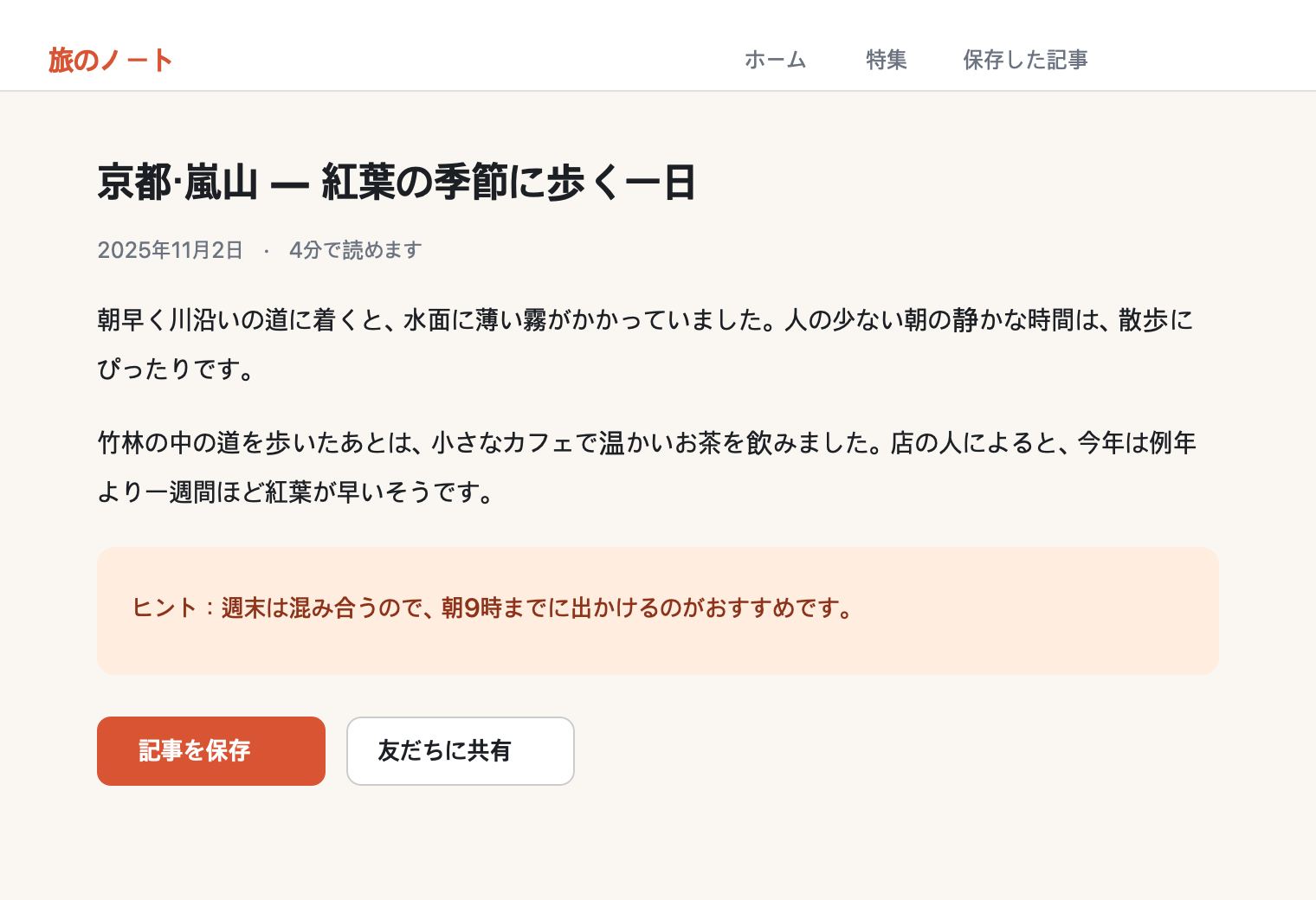
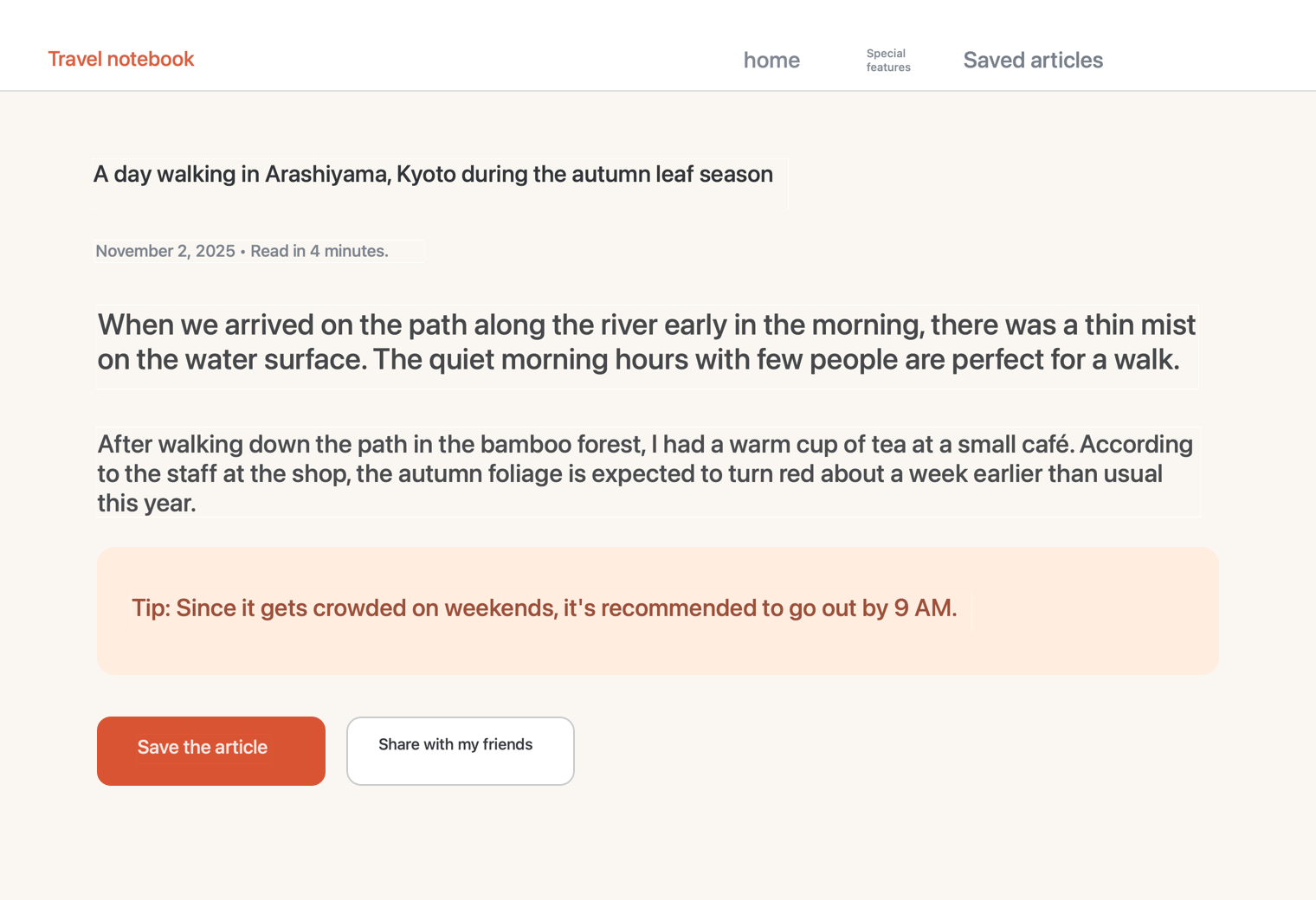 Original
Boyeo
Read the screen as if it were written for you
A lens sits over the part of the screen you pick. Under it, every line is translated in place, in the same size and colours as the original.
Follows the window
Click a window once and the lens sticks to it. Move it, resize it, or open a dialog in it: the translation keeps up.
Live as you scroll
When the screen changes, Boyeo reads it again. The first lines appear within a second or two, and the rest fill in as each one is ready.
Fits the page
Each translation takes the place of the original text and matches its size, background and colour, so menus, buttons and paragraphs stay where they were.
Stays on your Mac
Text recognition and translation both use Apple's on-device engines. Nothing on your screen is uploaded, and there are no accounts, ads or tracking.
13 languages
English, Korean, Japanese, Chinese (Simplified and Traditional), French, German, Spanish, Italian, Portuguese, Russian, Vietnamese and Thai. The source language is detected for you.
Light on your Mac
It only reads the screen again when something changes, so it uses almost no CPU while you're reading.
How it works
Boyeo lives in the menu bar. One shortcut starts a lens and stops it again.
-
Press ⌥ ⌘ T
The screen dims so you can choose what to translate.
-
Drag or click
Drag over an area, or click a window to follow it wherever it goes.
-
Read
The bar on the lens lets you pause to see the original, switch languages, or close it.
Opening it the first time
Boyeo is free and isn't notarized by Apple, so macOS asks you to confirm it once. After that it opens normally, and updates install without asking again.
- Open Boyeo.dmg and drag Boyeo into your Applications folder.
- Open Boyeo. macOS says it can't verify the app: click Done.
- Open System Settings → Privacy & Security, scroll down, and click Open Anyway next to Boyeo. Enter your password, then click Open.
- Boyeo asks for Screen Recording permission. Turn it on under Privacy & Security → Screen & System Audio Recording, then choose Quit & Reopen.
The first time you translate a language, Boyeo offers to download Apple's language pack for it. Translation then works offline.
Questions
Is it really free?
Yes. There's no account, subscription, trial or ad. Download it and use it.
Does anything on my screen leave my Mac?
No. Boyeo reads the screen and translates it with Apple's on-device engines. The only connection it makes is to this website, to check for a new version. See the privacy policy.
Why does it need Screen Recording permission?
To see the text it translates. It only captures the area or window under an open lens, and only while that lens is open.
Why does macOS warn me about it?
Apple's notarization comes with a paid developer membership, which this free app doesn't have. The app is signed with the same certificate for every release, so once you've opened it, updates are recognized as the same app.
How do updates work?
Boyeo checks this site for a new version and asks before installing it. You can also choose Check for Updates… from its menu bar icon.
What do I need?
macOS 26 or later, on an Apple silicon or Intel Mac. Language packs are downloaded by macOS the first time you use a language.
How do I remove it?
Choose Quit Boyeo from its menu bar icon and move it from Applications to the Trash.